Preview, Download, and Email an Invoice
Check the invoice PDF and send a confirmed invoice to the right customer contact.
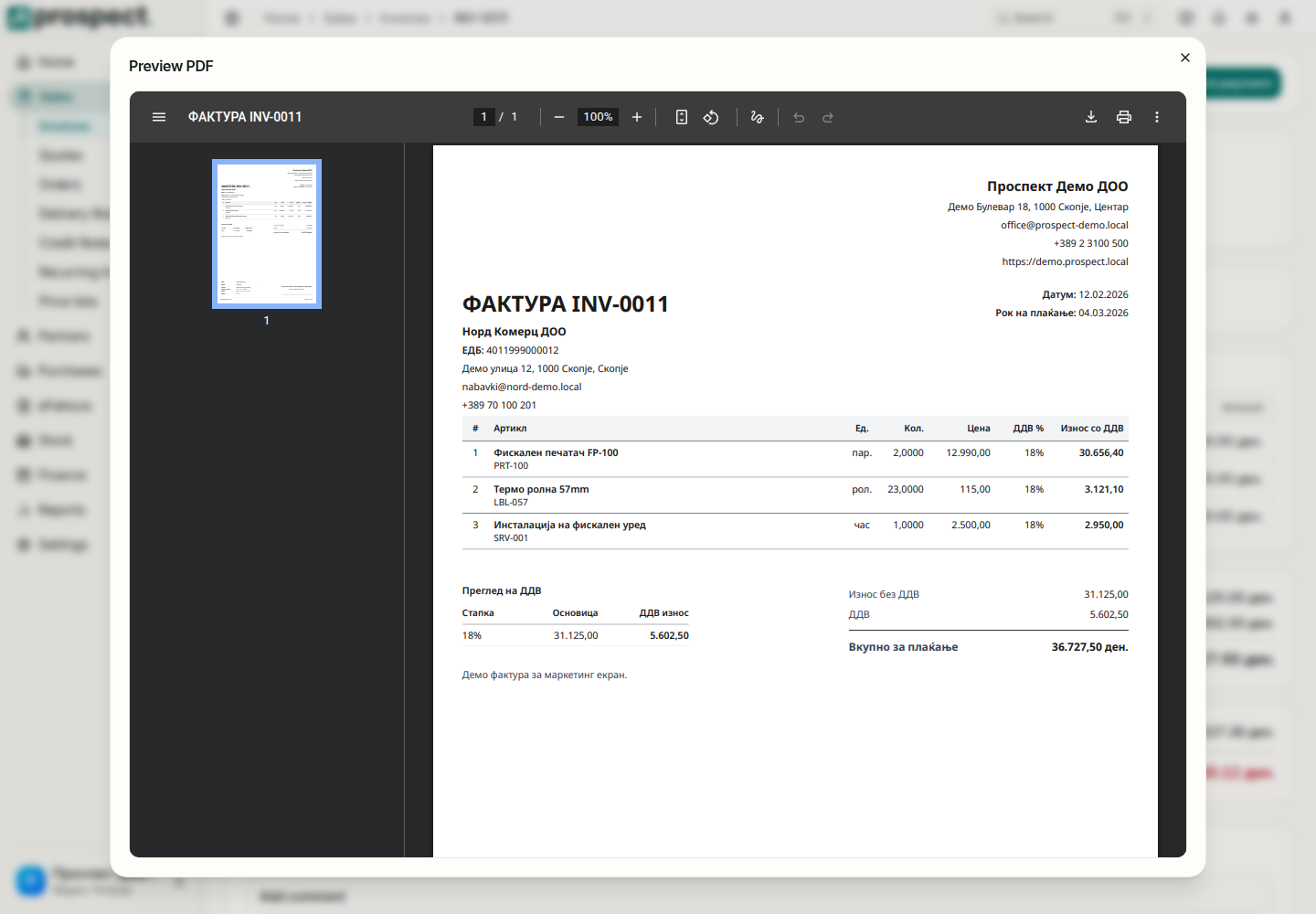
The PDF of an invoice is built from the confirmed document, your company details, the customer's details and the PDF template selected for invoices.
You need: the Sales permission and a confirmed invoice. Sending by email needs the customer's email address.
Open the invoice from Sales → Invoices and choose Preview PDF.
In the preview, check the number, dates, seller and buyer details, bank account, line descriptions, quantities, VAT summary and total.
Use the download or print buttons of the preview, or close it and choose Download PDF from the ⋯ menu, when the invoice must be archived or sent outside Prospect.
Choose Send by email from the ⋯ menu, confirm or enter the recipient's address, and send.
Check the confirmation message and the document timeline. If sending fails, correct the address and send again; the invoice itself does not change.
Good to know
- Sending an email does not mark the invoice as paid and does not send it to eFaktura. Those are separate steps; see Payments and Send outbound eFaktura.
- A draft is not an official invoice. Confirm it before you send it.
- The layout, logo, colors and labels come from the template. An owner or administrator changes them under PDF templates; a changed template applies to PDFs created afterward.
- When a confirmed invoice is wrong, issue a credit note or reverse it. Never edit a downloaded PDF.
- Keep the PDF you delivered when company policy requires proof of exactly what was sent.