Sales Orders and Stock Reservations
Confirm customer demand, reserve available stock, and track what has been delivered and invoiced.
A sales order records what the customer ordered. Once confirmed it can reserve stock, and it shows for every line how much has been delivered and invoiced.
You need: the Sales permission, an active Sales Order document series, and, for reservations, Reserve stock on sales orders switched on under Settings → Defaults.
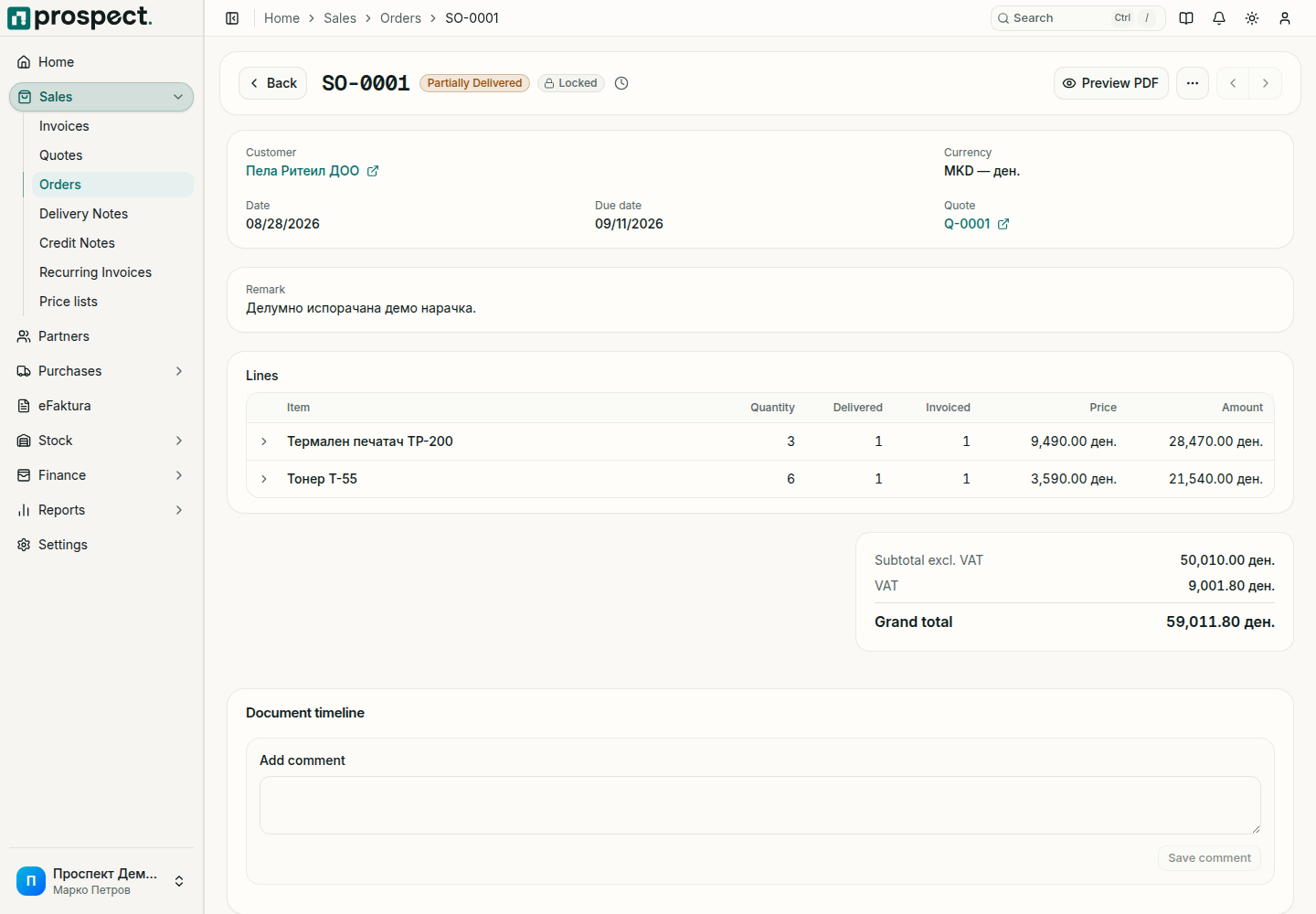
Create and confirm
Choose Convert to order on a confirmed quote, or open Sales → Orders and choose Create.
Check the Order code, Date and Delivery due date, select the Customer, and add the lines with quantities and prices.
On confirmation Prospect reserves the available quantity of each product in the default warehouse when reservations are switched on. What cannot be reserved stays unreserved; the order is still valid.
Deliver and invoice
From the confirmed order, use Create delivery note for the quantities that actually leave the warehouse, and Generate invoice for what you bill. Each new document offers only the quantity that is still open on the order.
| Status | Meaning |
|---|---|
| Confirmed | Published, nothing delivered yet. |
| Partially Delivered | Some lines or quantities are delivered. |
| Closed | You chose Close order because nothing more will be delivered; the reason is shown. Reopen order undoes it. |
Reservations and availability
A reserved quantity lowers Available stock but not On hand stock; see Stock levels. The delivery note uses up the reservation and takes the goods out of stock. Closing or reversing the order releases what is still reserved.
Common blockers
- Quantity above what is available: reduce the quantity, receive more stock, or use an authorized override with a reason if your policy allows negative stock.
- Delivering or invoicing more than ordered: allowed only within the Quantity tolerance (%) set in Settings → Workflow Policy.
- Reverse is refused: the order still has active delivery notes or invoices. Reverse those first, or close the order instead.
Next: Delivery notes and Create a sales invoice.