Sales Lifecycle
Understand how quotes, orders, reservations, deliveries, invoices, payments, credits, and returns fit together.
The Sales permission opens Sales in the sidebar: Invoices, Quotes, Orders, Delivery Notes, Credit Notes, Recurring Invoices, and Price lists. Confirming and reversing documents require separate action permissions for members whose access is limited.
Document flow
Quote → Sales order → Delivery note → Sales invoice → Payment
A transaction may start at a later step, but creating each document from the previous one is preferred. It carries the customer and lines forward, tracks what is still open, and builds the document timeline.
| Document | What confirming it does |
|---|---|
| Quote | Records an offer. No stock or financial effect. |
| Sales order | Records the customer's commitment and can reserve stock. |
| Delivery note | Takes products out of the warehouse. |
| Sales invoice | Creates the receivable and can prepare an outbound eFaktura. |
| Credit note | Reduces or reverses an invoiced amount. |
Draft, confirmed, reversed
- A new document is a draft until you choose Confirm. A draft can be changed freely and has no stock or financial effect.
- A confirmed document is published: it shows Confirmed (a quote shows Published) and Locked, its content can no longer be edited, and its effects are active.
- Reverse cancels a confirmed document and undoes its effects. It is offered only while no later document depends on it and the date is not in a locked period.
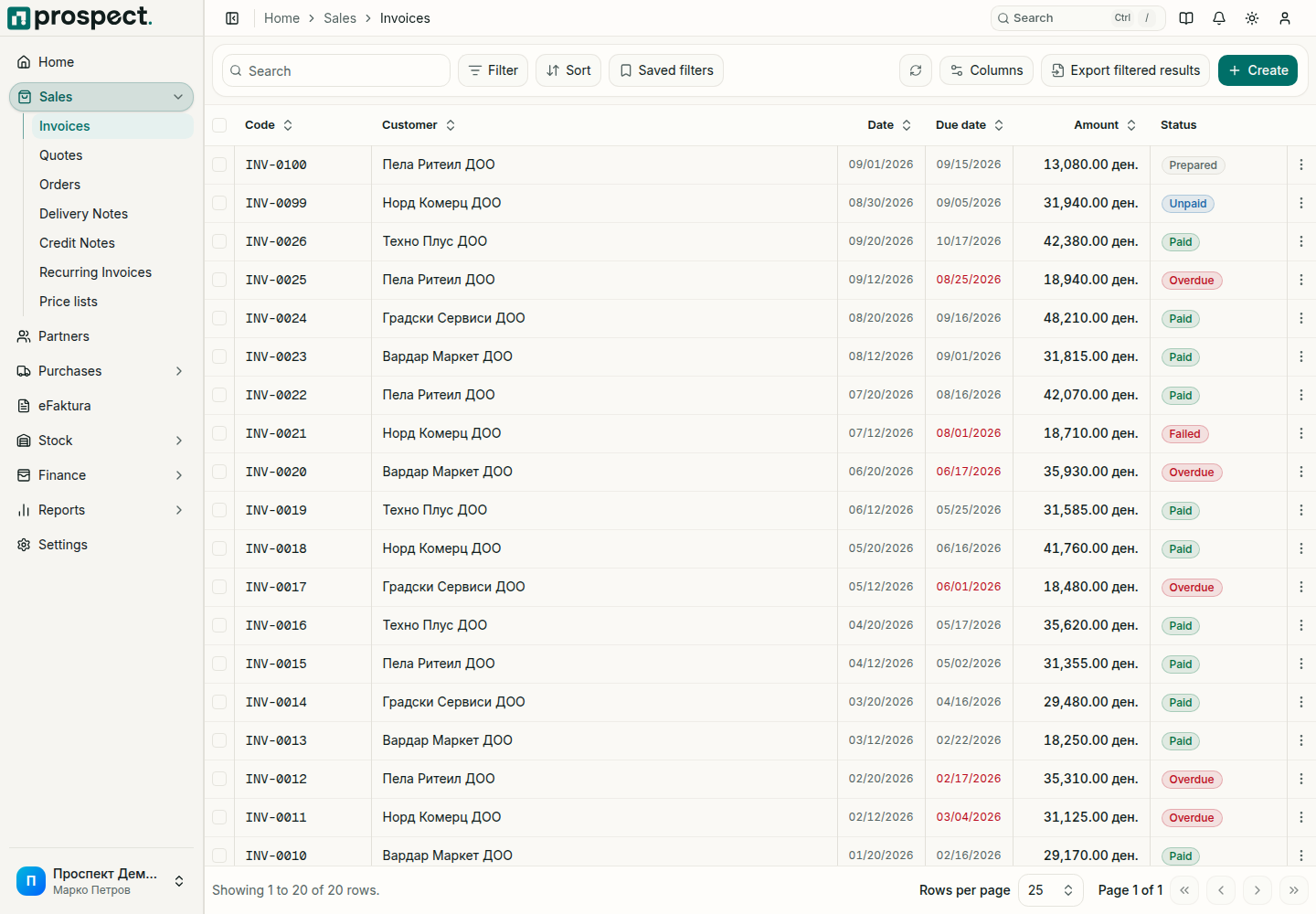
Payments update the invoice's status to Partially paid or Paid. An invoice past its due date shows Overdue.
Do not reverse an earlier document while later ones depend on it. Use the timeline and the delivered and invoiced quantities on the order to decide whether to complete, close, credit, return, or reverse.
If your company does not use orders, an owner or administrator can hide them under Settings → Modules. See Company defaults and workflow policies.