Create and Publish a Sales Invoice
Create a direct or order-linked invoice, check it, confirm it, and understand what it changes in finance and stock.
A sales invoice bills a customer. Confirming it gives it its official number and creates the receivable.
You need: the Sales permission and the permission to confirm sales documents, an active Invoice document series for the fiscal year, the customer, and the items you sell.
Start the invoice
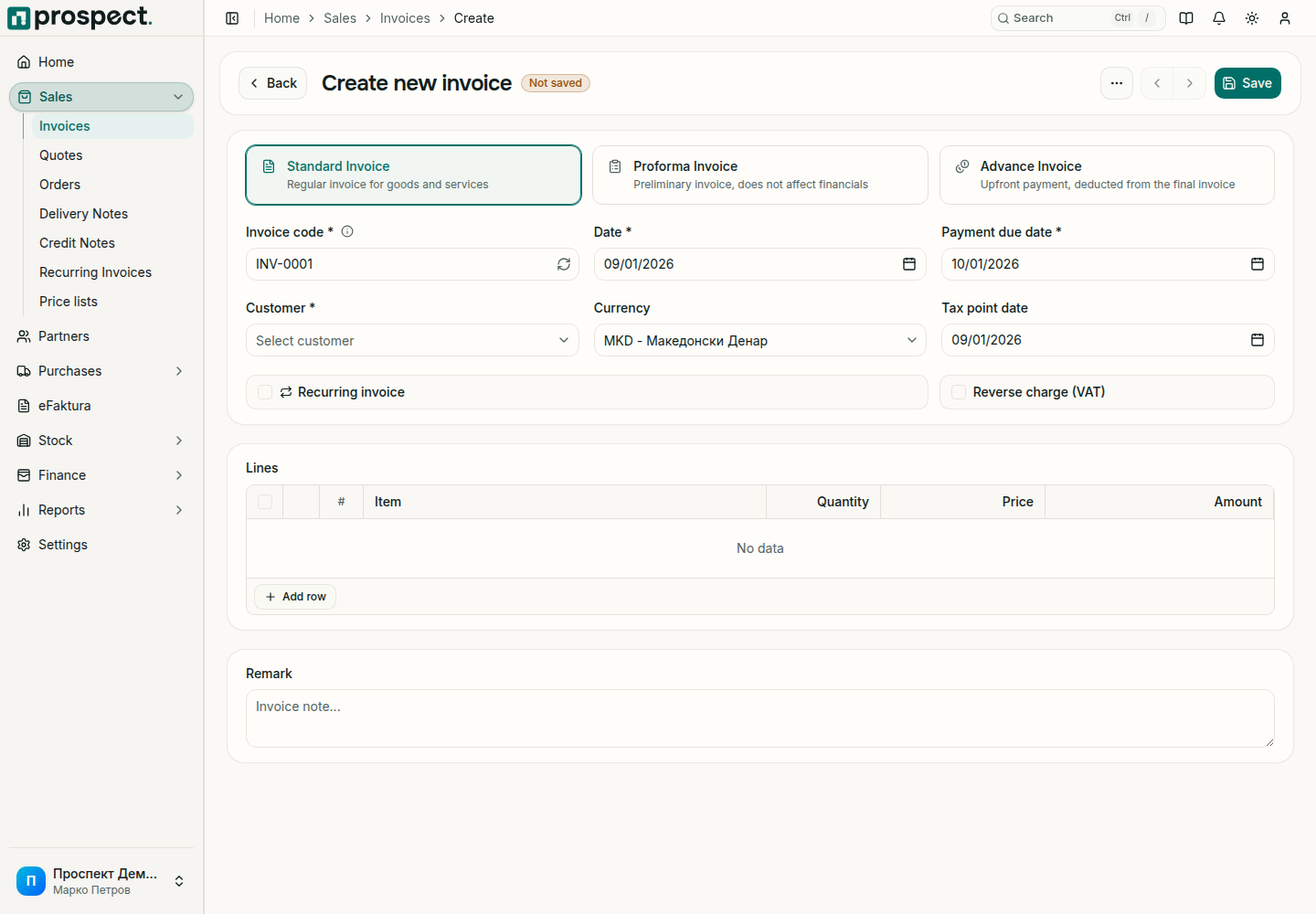
Open Sales → Invoices and choose Create. To bill an order or a delivery, choose Generate invoice on that document instead; the customer and lines are filled in for you.
Choose the type: Standard Invoice for goods and services, Proforma Invoice for a preliminary document with no financial effect, or Advance Invoice for a prepayment that is later deducted from the final invoice.
Check the Invoice code and Date. The Payment due date follows the customer's payment terms, or the company default, until you change it. Set the Tax point date when it differs from the invoice date.
Select the Customer and, if needed, another Currency. Tick Reverse charge (VAT) only when that tax treatment applies to the sale.
Under Lines, choose Add row and enter each item, quantity and price. A customer price list or default discount is applied to new lines.
Add a Remark if something must print on the invoice, then choose Save.
Check and confirm
Open Preview PDF and compare number, dates, seller and buyer details, lines, VAT and total with what you agreed.
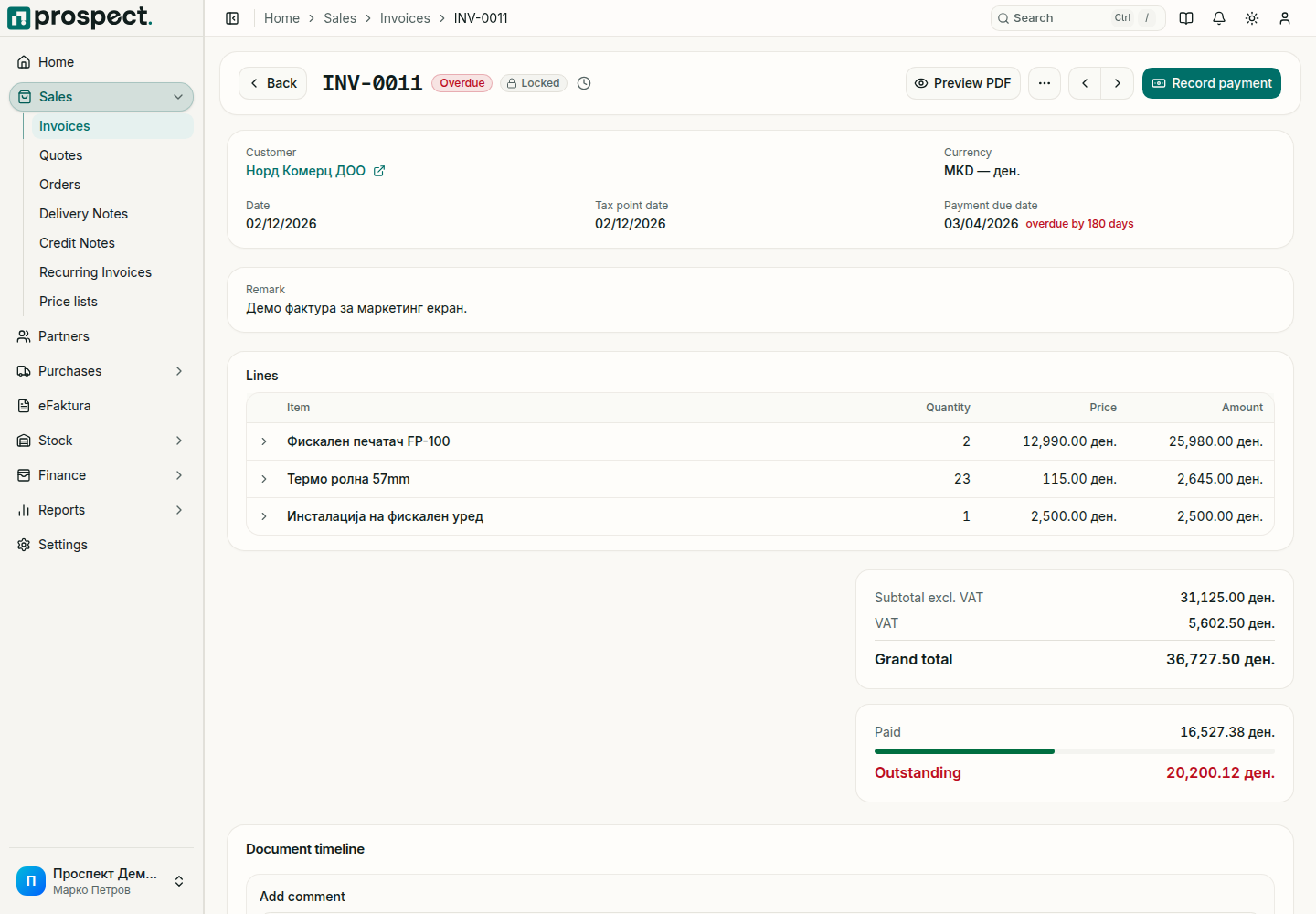
Choose Confirm and accept the confirmation question. The invoice is now published and Locked.
What confirming changes
| Area | Effect |
|---|---|
| Finance | A receivable appears in Open items for the invoice total. |
| Status | Unpaid, then Partially paid and Paid as payments are matched; Overdue after the due date. |
| Stock | When the company invoices and delivers in one step (Invoicing mode in Settings → Defaults), the delivery note and stock movement are created with the invoice. Otherwise stock moves with the delivery note. |
| eFaktura | When eFaktura is enabled, the invoice appears in the eFaktura workspace to be signed and sent. |
Common blockers
- No number can be assigned: no active Invoice series for that fiscal year.
- Credit limit exceeded: the customer's open balance plus this invoice is above the limit on the partner; an authorized user can override with a reason.
- Delivery or order required: your workflow policy requires a sales order, or a delivery note before invoicing stock items.
- Locked period: the invoice date is in a locked fiscal year.
A confirmed invoice cannot be edited. Correct it with a credit note, or Reverse it when nothing depends on it yet.
Next: Preview, download and email the invoice and Record the payment.