Record, Allocate, and Reverse Payments
Record money received or paid, apply it to the open invoice or supplier document, and reverse a mistake safely.
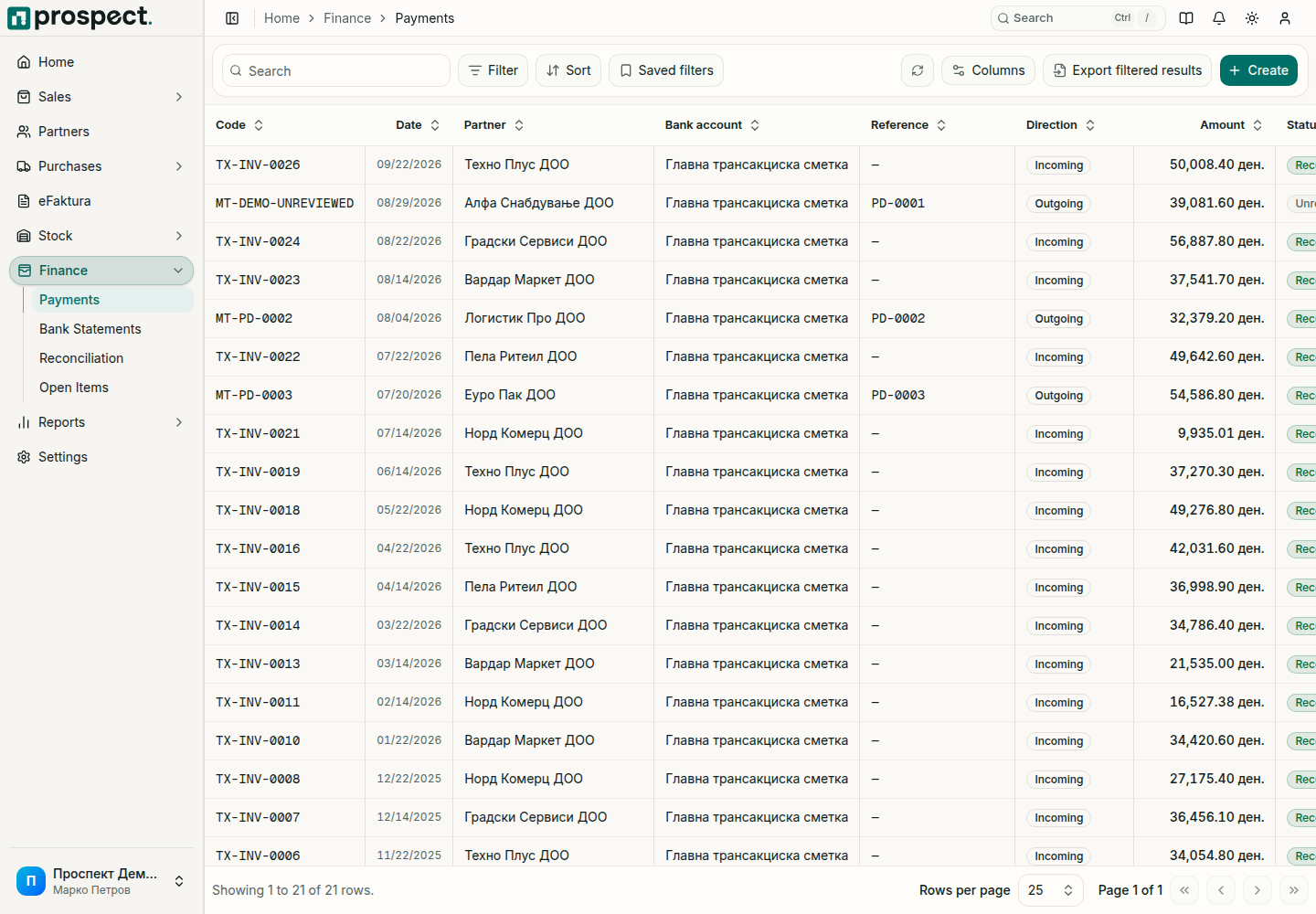
Finance → Payments is the register of every money transaction: payments you recorded by hand and those created when you reconcile bank lines.
You need: the Finance permission. Reversing needs the permission to reverse finance transactions.
Record a payment
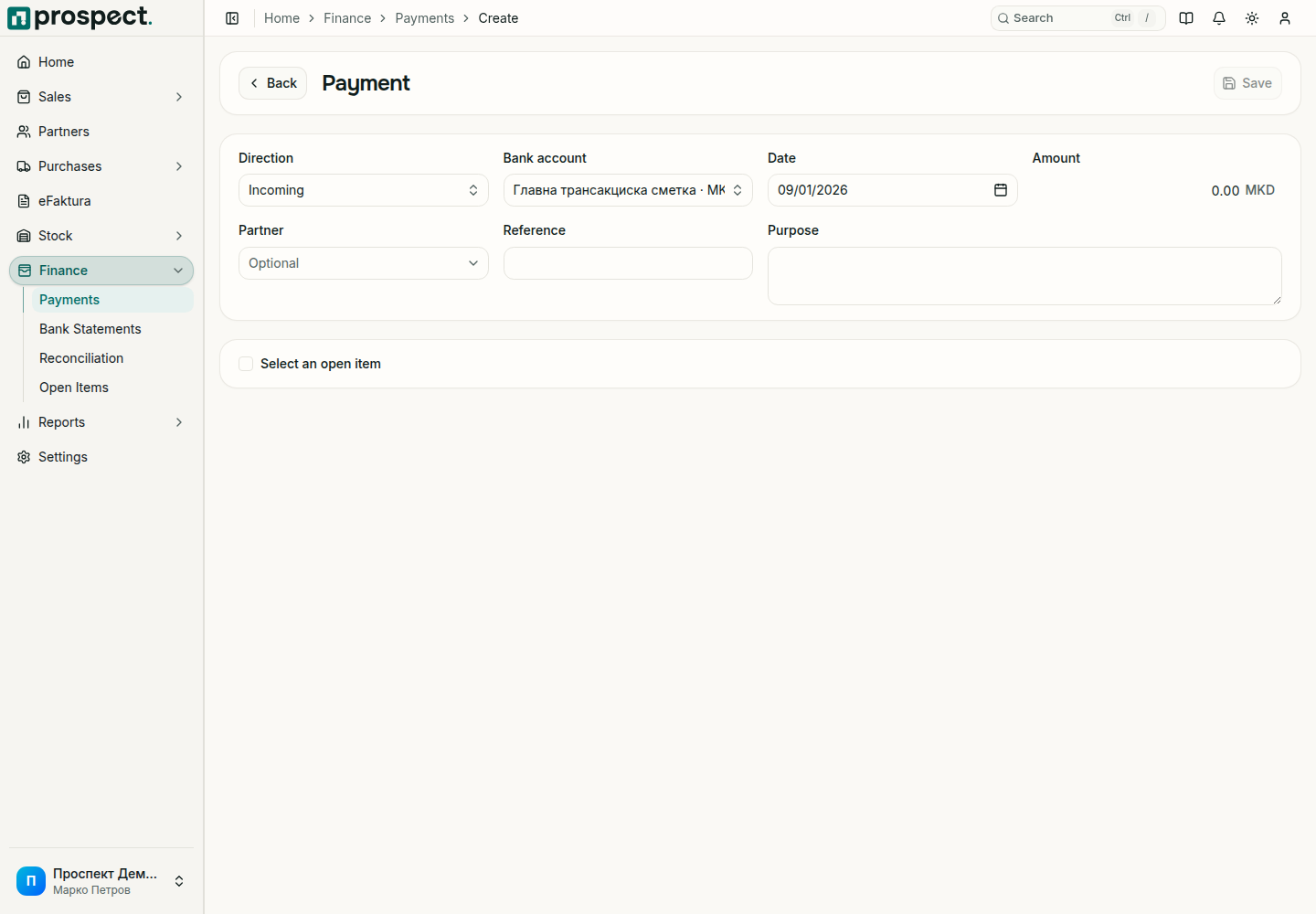
Open Finance → Payments and choose Create. You can also choose Record payment on an open sales invoice; the invoice is then selected for you.
Choose the Direction: incoming for money you received, outgoing for money you paid.
Select the Bank account and Date, and enter the Amount.
Select the Partner. It is optional, but it is needed to apply the payment to that partner's open items.
Enter the bank's Reference and the Purpose so that the payment can be found later.
Tick Select an open item and choose the invoice or supplier document this payment settles. Leave it unticked to record the money without applying it.
What a payment changes
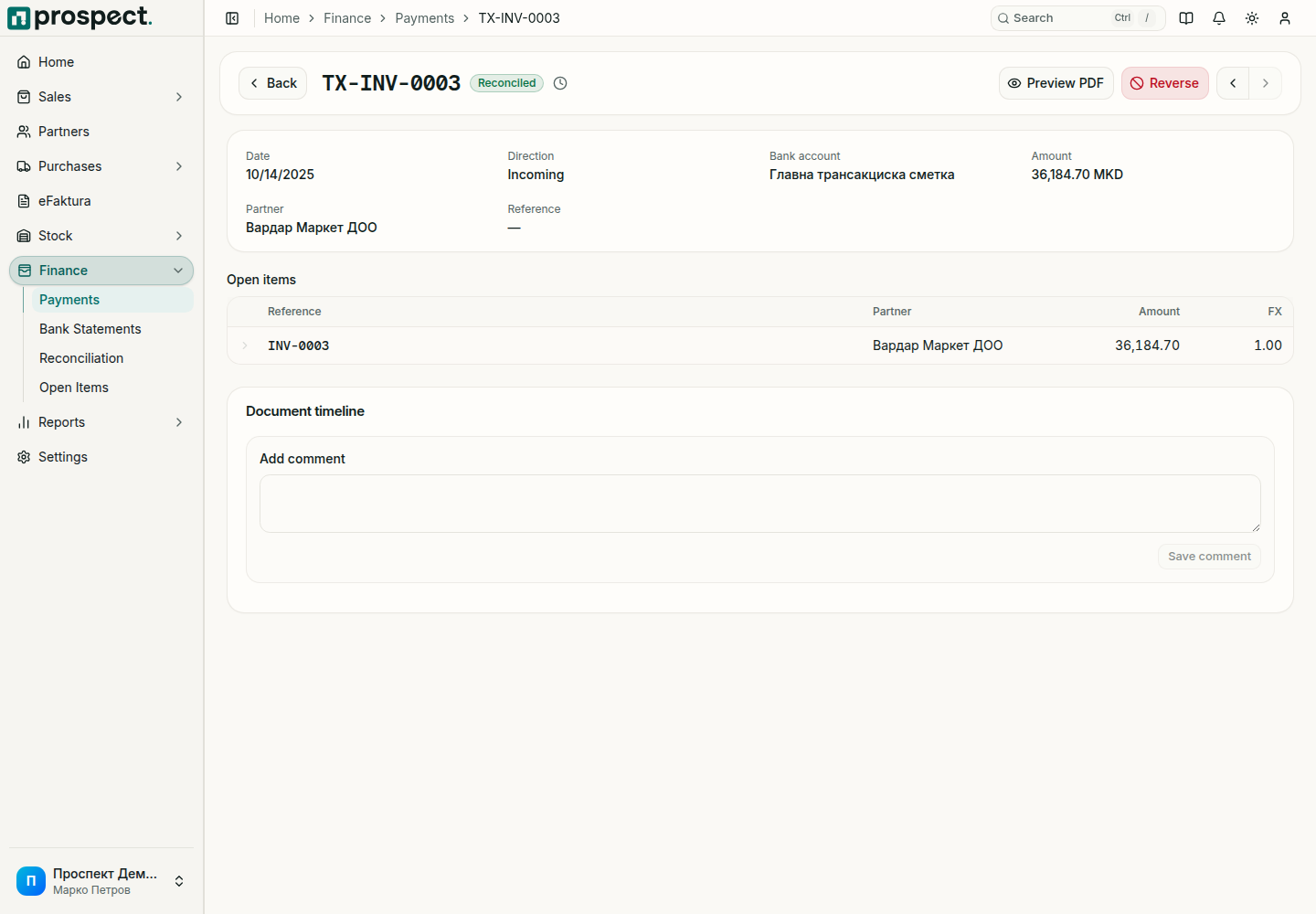
- The open item of the invoice or supplier document goes down by the applied amount; see Open items.
- The document's status becomes Partially paid or Paid.
- The payment appears on the partner's customer or supplier statement.
Whether an amount above the open balance may stay as credit on the customer, or as an advance to the supplier, is decided by Customer overpayments and Supplier advances in Settings → Workflow Policy.
Reverse a payment
To correct a recorded payment, open it and choose Reverse. The amounts it settled become open again, and both the payment and its reversal stay in the history. Then record the correct payment.
Never create a negative payment to imitate a credit note, a return, or a reversal. A payment dated in a locked fiscal year needs the period reopened or an authorized override.
Most payments do not have to be typed in: import the bank statement and confirm the matches in Reconciliation.