Deliver Goods with Delivery Notes
Record what leaves the warehouse for a customer, use up reservations, and keep order quantities correct.
A delivery note records the products that physically leave a warehouse for a customer. Confirming it reduces stock.
You need: the Sales permission, an active Delivery Note document series, and enough stock in the selected warehouse.
Create a delivery note
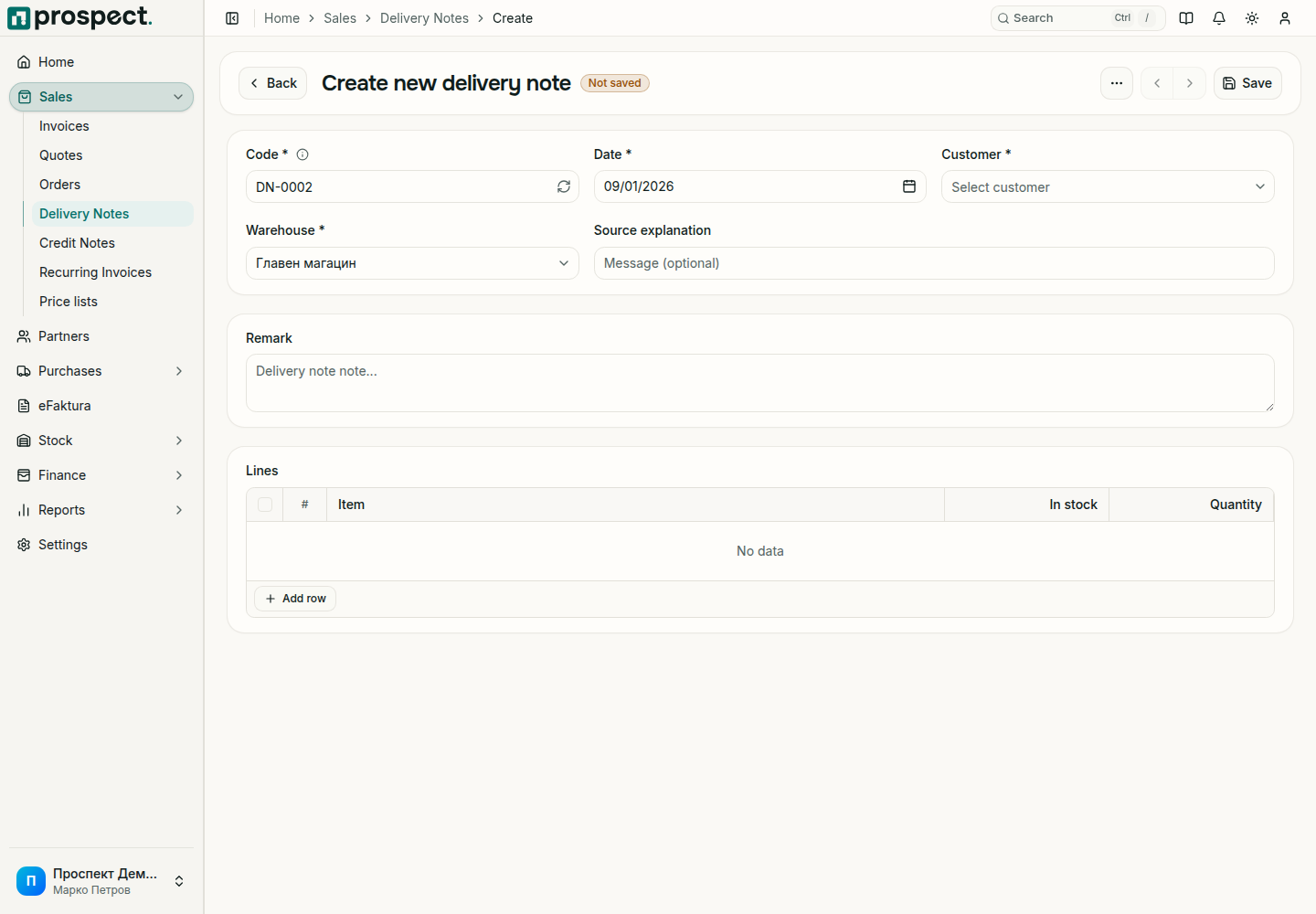
On a confirmed sales order choose Create delivery note. For a delivery without an order, open Sales → Delivery Notes and choose Create.
Check the Code and Date, select the Customer and the Warehouse the goods leave from. A delivery without an order may need a Source explanation, depending on your workflow policy.
Under Lines, keep only what is actually shipped. The In stock column shows the quantity in the selected warehouse next to the Quantity you deliver.
After confirmation
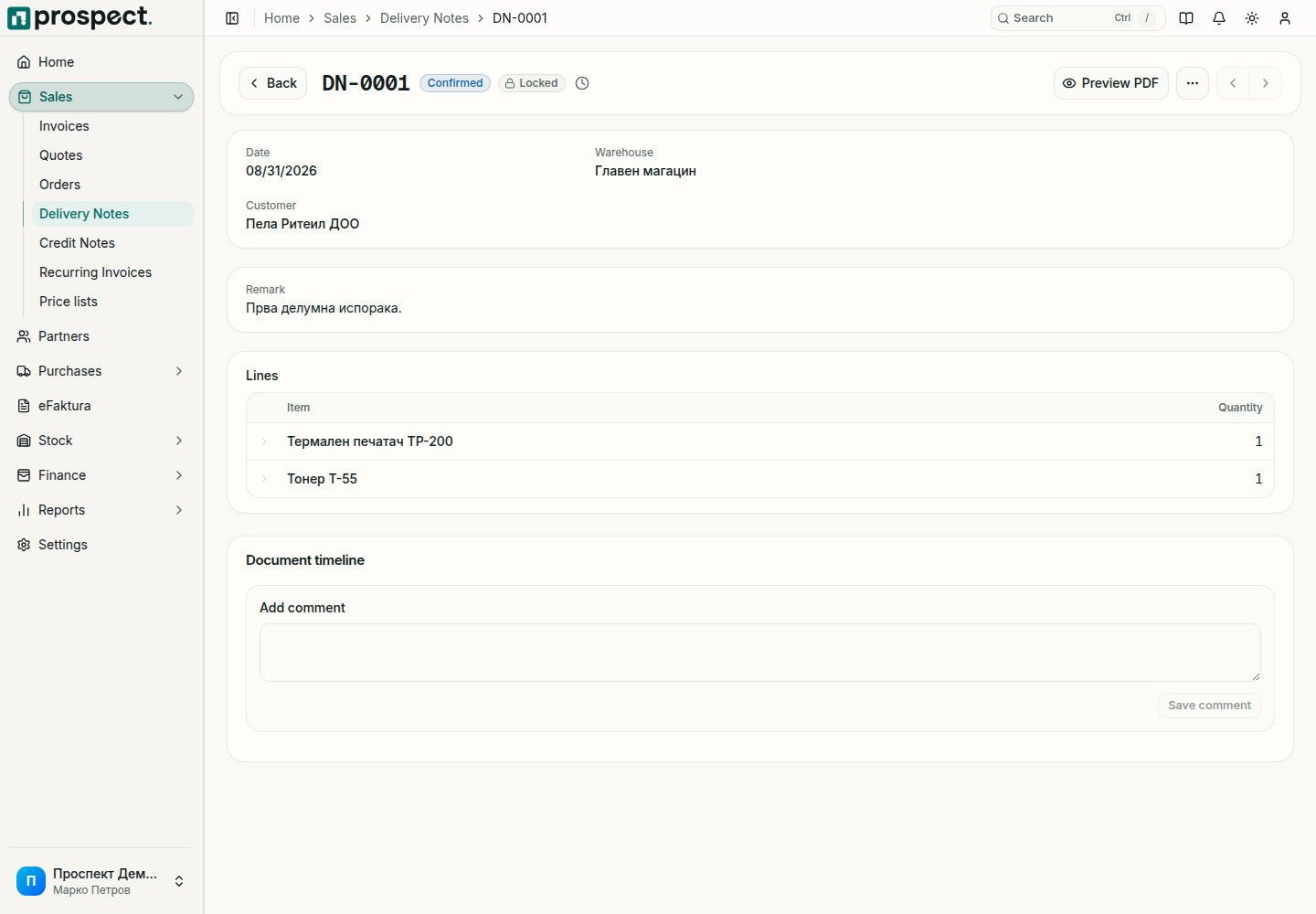
- Stock of each product goes down in the selected warehouse and the movement appears in Stock movements.
- The order's Delivered quantities go up and its reservation is used.
- Service lines do not move stock.
- You can create the invoice from the delivery note so that it bills exactly what was delivered.
Corrections
| Situation | What to do |
|---|---|
| The delivery was entered by mistake and is not invoiced | Reverse the delivery note. The quantities go back into stock. |
| The customer sends goods back | Use Record customer return to create a return note. Do not enter negative quantities. |
| The delivery is already invoiced | Reverse or credit the invoice first; an active invoice blocks reversing the delivery. |
Not enough stock, or a quantity above what the order still allows, blocks confirmation unless your policy permits an authorized override. A date in a locked fiscal year is refused.