Sign, Send, and Follow Outbound eFaktura
Sign confirmed sales invoices with the local signer, send them to UJP, and act on rejected or failed documents.
A confirmed sales invoice or credit note appears in the eFaktura workspace when eFaktura is enabled for the company. From there you sign it, send it to UJP, and follow its status.
You need: access to the eFaktura workspace, your own signing certificate set up, and the local signer running with your USB token. If something is missing on this computer, the workspace offers Set up signing.
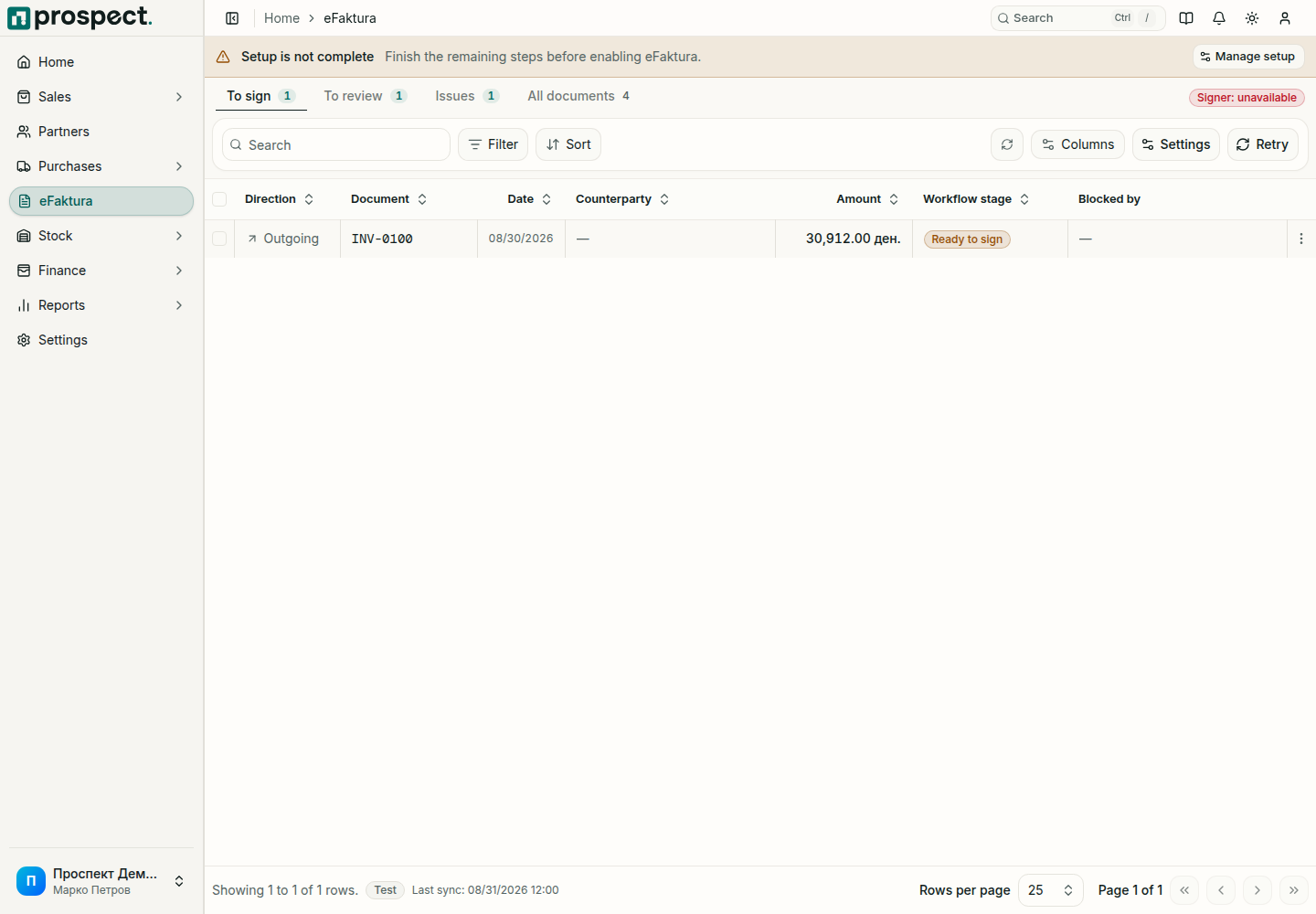
Sign and send
The quickest way is on the invoice itself: choose Sign and send. A saved draft says beside the button whether it is Ready for eFaktura or how many things are missing.
Or open eFaktura and select the To sign tab. Each row has its own Sign and send button. The button above the list, for example Sign and send all 3, takes the whole queue.
Prospect asks once, naming the invoice, the customer and the amount. Anything that still stops the invoice is listed there with its fix beside it. Confirm.
Type the token PIN in the signer window if it asks. The documents are signed and sent to UJP one at a time.
The Status column changes from Waiting for you to Sent, and to Done once the customer has answered.
When a document is rejected or fails
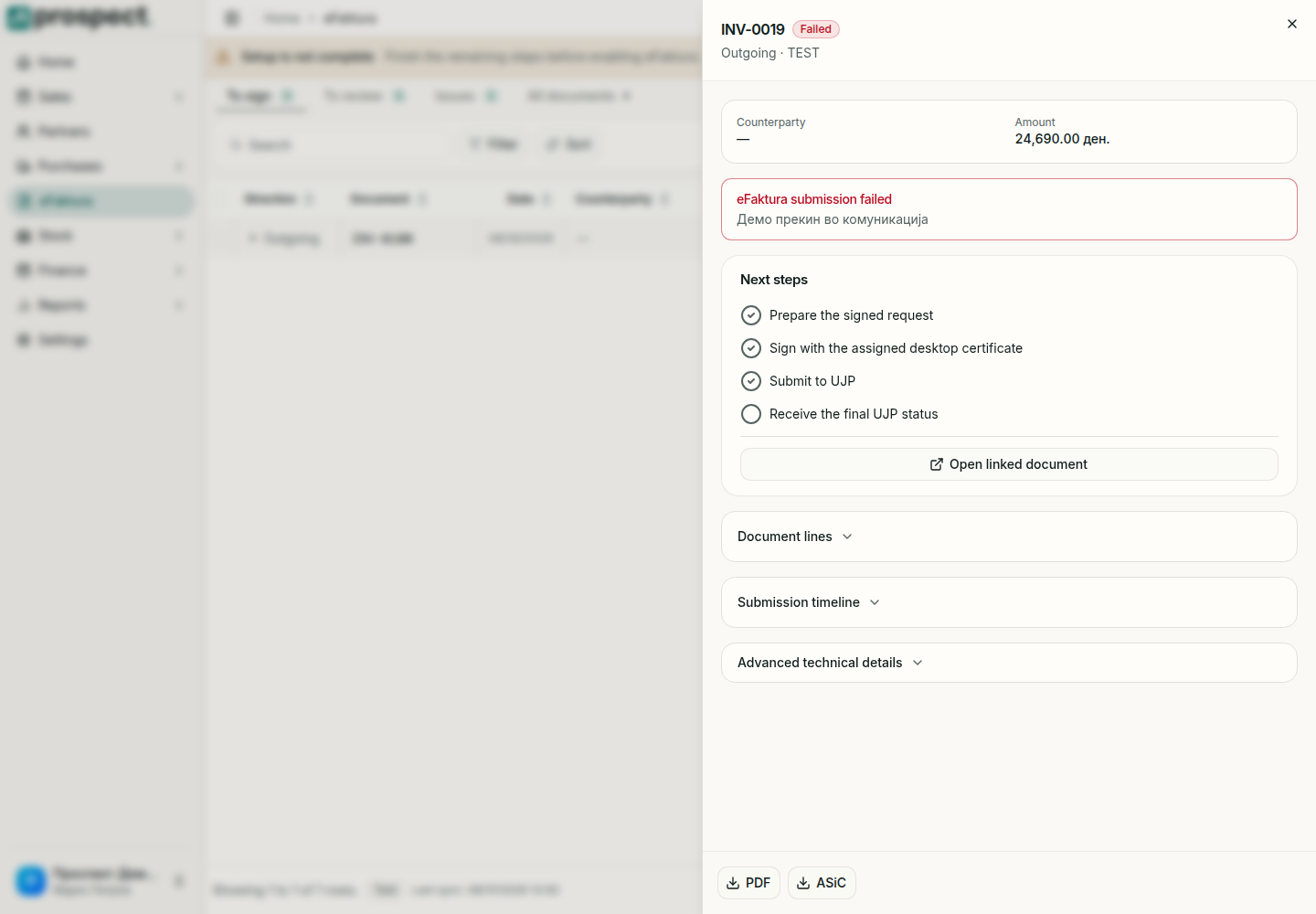
The Issues tab lists outgoing documents that UJP rejected or that could not be sent. Open one to see what happened and what remains.
| Status | What to do |
|---|---|
| Waiting for you | Sign and send it, or do what the row's button says. |
| Sent | Nothing. UJP has it; the answer arrives with the next check. |
| Problem | Read What is stopping it. If UJP refused the document, fix what it names and choose Try again, or Withdraw it and issue a corrected invoice. |
| Done | Nothing more to do. |
If UJP did not answer at all, Prospect cannot tell whether the document arrived. It does not offer Try again then, because sending twice could file the invoice twice; the next check settles it.
Good to know
- A confirmed invoice in Prospect is not yet an accepted eFaktura. UJP is authoritative for receipt and final processing; Prospect shows the status it last synchronized, with the time at the bottom of the list.
- News from UJP arrives with a check, and UJP wants every check signed. Prospect checks by itself on any page while your token is unlocked; Check now in the workspace does it at once.
- Send each document once. If you are unsure whether it arrived, choose Check now and look at its status instead of sending again.
- PDF and ASiC in the document panel download the document and its signed container for your records.
- Test and live are separate. A Test environment label at the bottom of the list shows when you are not on live.
See Mappings and diagnostics when a document is blocked by a missing mapping.
Review and Accept Inbound eFaktura Documents
Review supplier invoices received through eFaktura, resolve mappings, accept or reject them, and continue in Purchases.
Use Reports, Filters, Drill-Down, and CSV Export
Run trustworthy operational reports with consistent periods, totals, source links, and exports.