eFaktura Mappings and Diagnostics
Resolve external partner, item, VAT, currency, and reference values before import or submission.
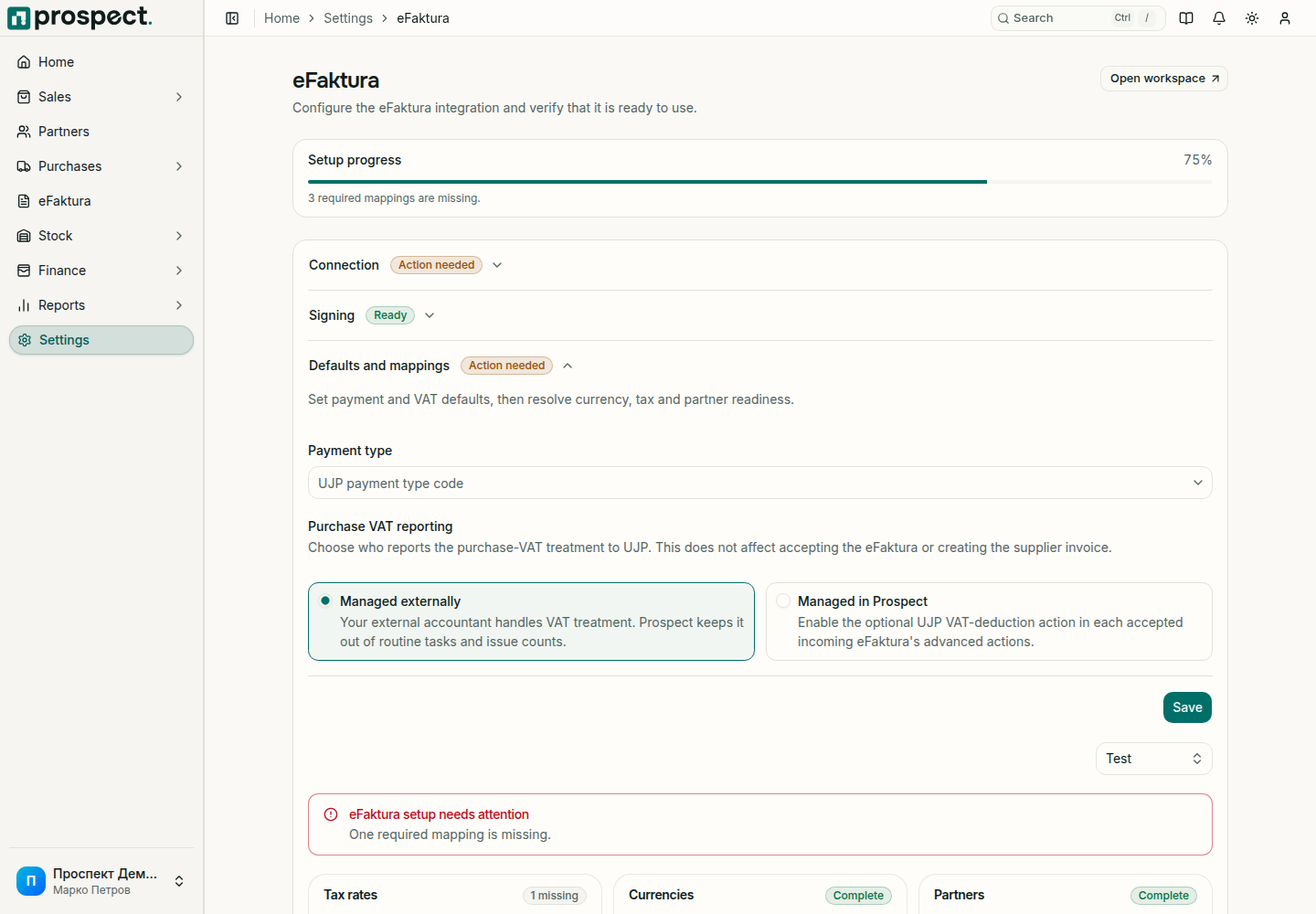
UJP has its own code for every VAT rate, currency, country and payment type. Open Settings → eFaktura → VAT codes and payment type: Prospect suggests the codes from UJP's lists for you to confirm, and lists anything it could not match, with a link to each.
Mapping rules
- Match partners by verified tax identity before relying on names.
- Map supplier item codes to the intended product or service; save an alias only after checking the unit and tax treatment.
- Map VAT, currency, unit, payment type, and other reference codes to active values.
- Keep Test and Live reference catalogs current and do not guess a code.
A country or a currency has to be one UJP lists. Prospect checks this when a partner, a currency or the company profile is saved, and again before an invoice is signed.
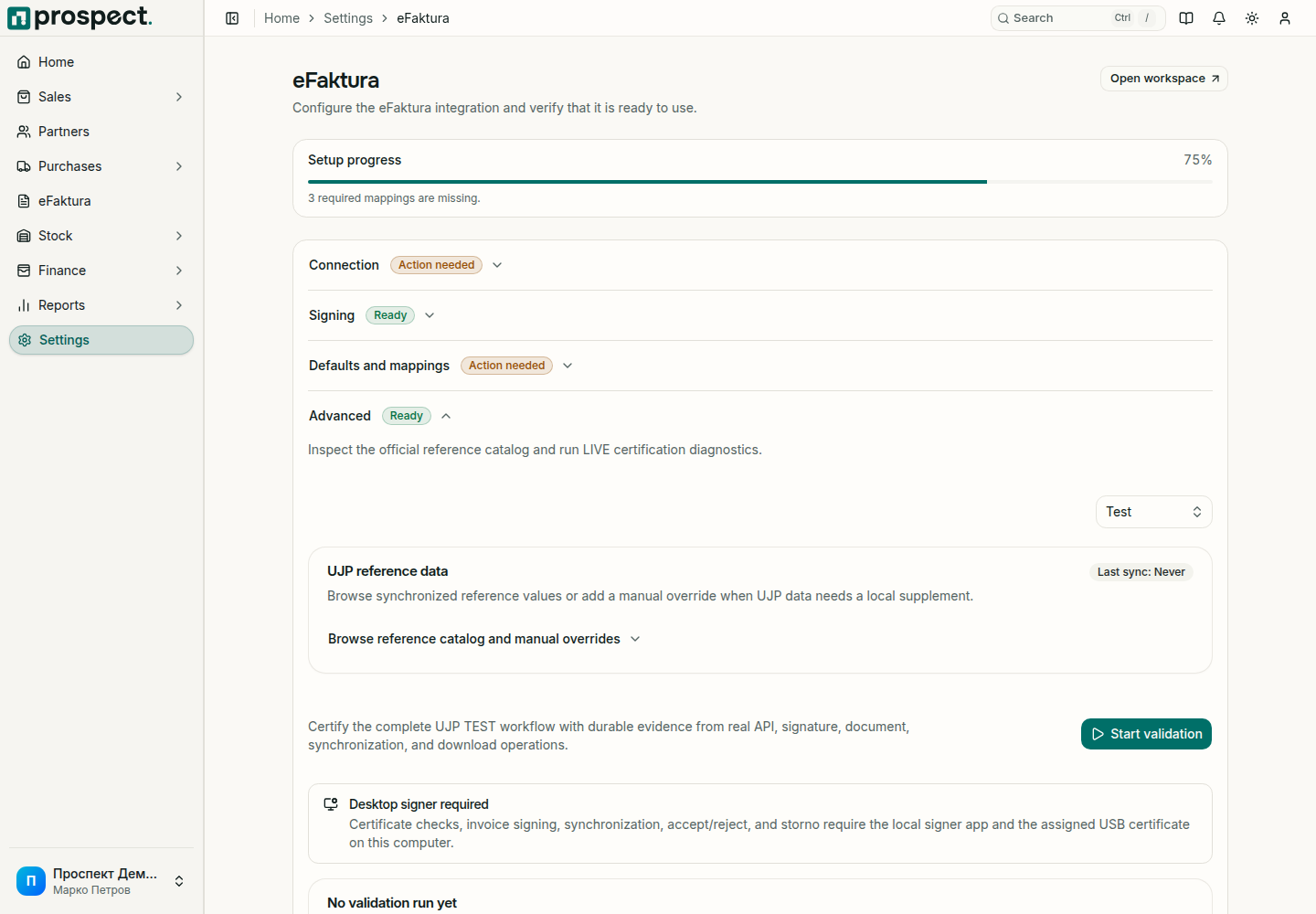
The full test run under Advanced is optional. It exercises the whole UJP test workflow and is not needed before you start; a passing run confirms the technical path, not the tax correctness of a particular invoice.
When a document reports an issue, open its detail, read the exact missing or invalid field, correct the master data or mapping, and validate again. Do not alter an unrelated local document simply to clear an integration warning.
Install and Pair the Windows Local Signer
Install Prospect Signer on Windows, pair it with your browser, and sign eFaktura documents with a USB token whose PIN never leaves your computer.
Review and Accept Inbound eFaktura Documents
Review supplier invoices received through eFaktura, resolve mappings, accept or reject them, and continue in Purchases.