Create Products, Services, and Barcodes
Maintain item master data used by sales, purchases, stock, reporting, PDFs, and eFaktura.
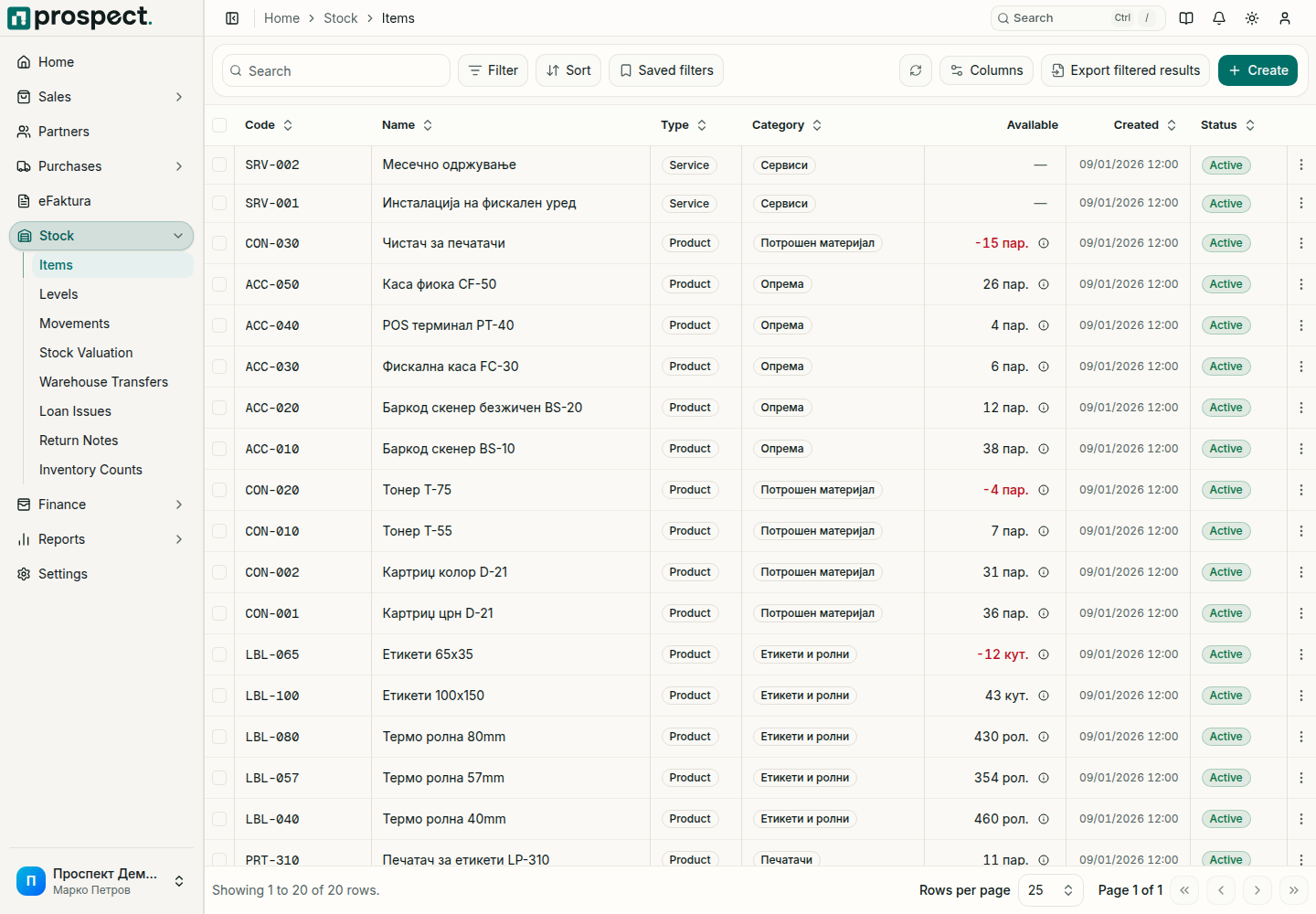
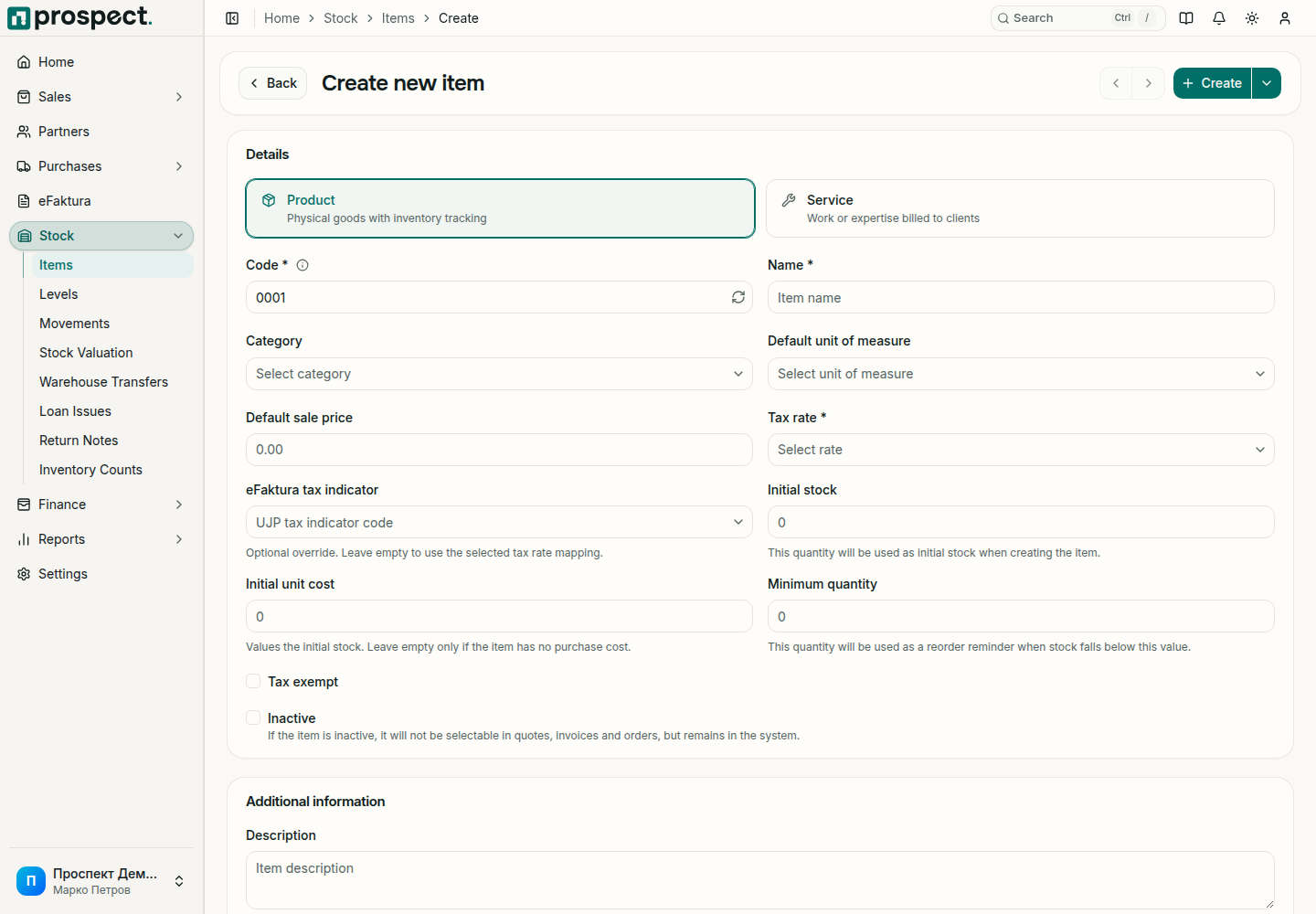
Open Stock → Items, choose Create, and select Product or Service.
Select unit of measure and category; add brand, sales price, purchase cost, weight, and reorder point when relevant.
For products, add unique barcodes with the correct symbology and stock defaults.
Save and review how the item appears in document selectors and PDFs.
Do not change a product into a service after it has stock history. Deactivating an item removes it from normal future selection without deleting its document and movement history. eFaktura imports may require an alias or mapping when the supplier's item code differs.
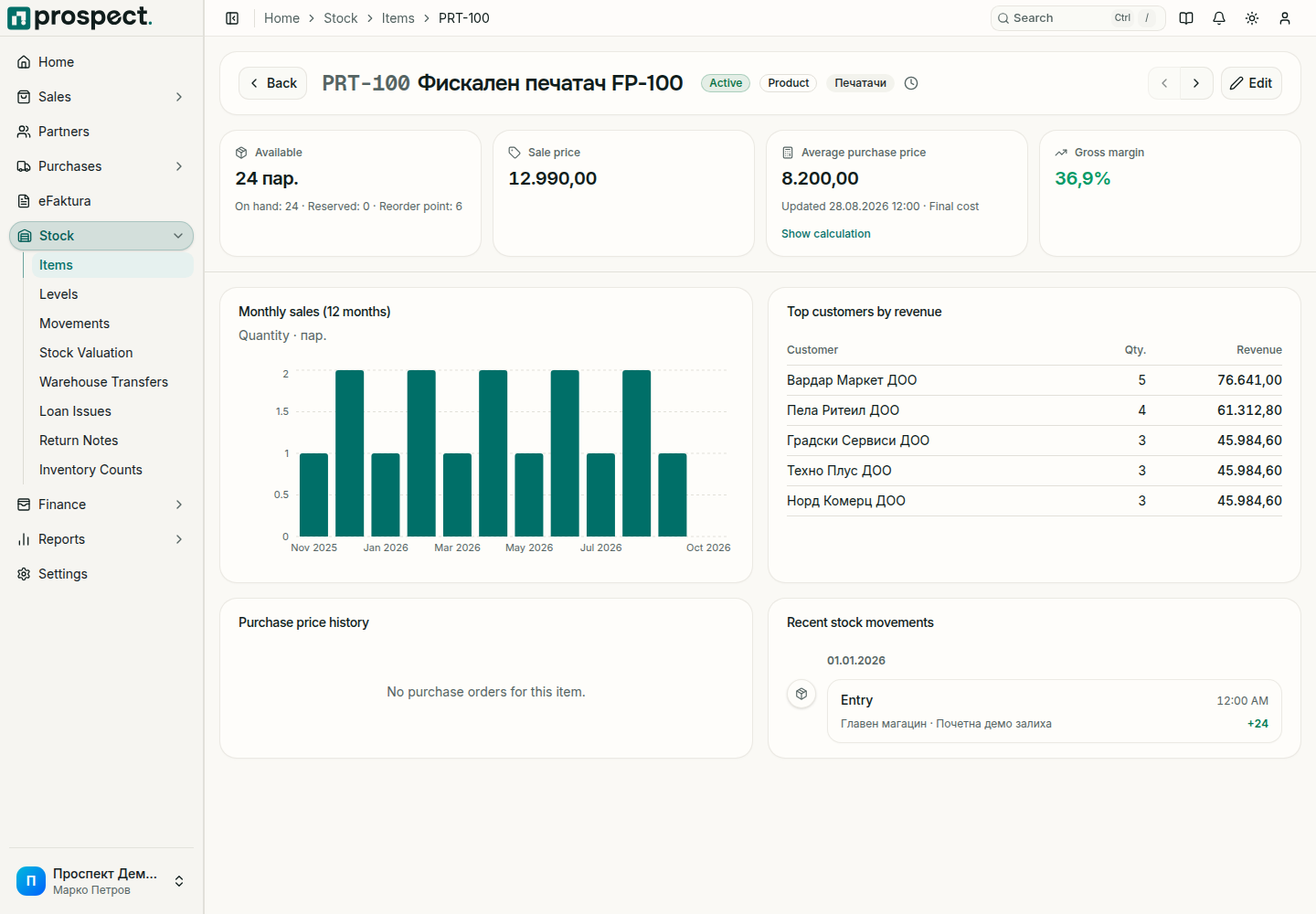
Open an item from the list to see how it is doing: what is available, its sale price, its average purchase price and gross margin, monthly sales, top customers, purchase price history and recent stock movements. Edit opens the form again.