Navigation, Search, and Notifications
Move around Prospect, find records globally, and act on operational reminders.
The sidebar shows only modules allowed by your role. Owners and administrators see Settings; members see the modules and action permissions assigned to them.
Press Ctrl + / or select Search in the header to open global search. Type to find a page. Type / to list the kinds of records you may search, such as quotes, invoices, items and customers; choose one and type a code or name.
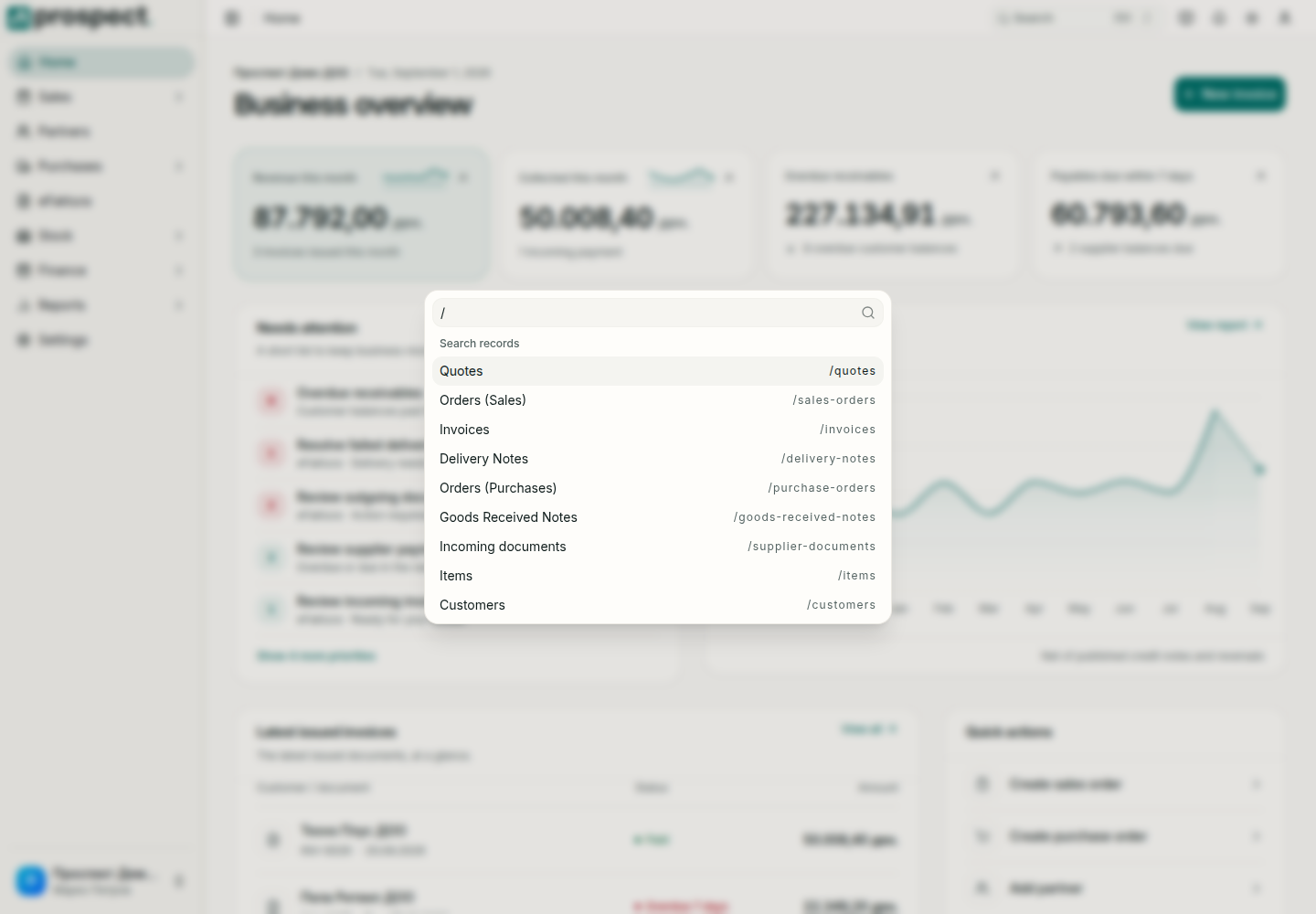
Find your work
- Use the breadcrumbs to return to a parent record or list.
- Open global search from the header or its keyboard shortcut, type a document code, partner, or item, and choose a permitted result.
- Use list filters, sorting, column visibility, and saved URL parameters to narrow larger data sets.
- Save a filter combination you use often from Saved filters. A saved filter is personal and belongs to that list; set it as the default and the list opens with it.
- Open the notification bell for unread reminders, or the Notifications page for the full history.
Notifications may identify due invoices, low-stock conditions, tasks, recurring-invoice results, or eFaktura states. Opening a notification does not complete the underlying work; follow its link and verify the record status.
If a search result or module is missing, first check spelling and active filters, then ask an owner to review your permissions. A direct link to a restricted area displays an access-denied state.